What are Google Display Ads? These are visual banner ads that appear on websites, apps, and YouTube channels across the internet. Unlike text search ads that show up when someone enters keywords, display ads catch people’s attention with images, animations, or video. Google’s Display Network spans over 2 million websites and apps. You can run simple static banners, animated GIFs, or responsive ads that adjust size and layout to fit different placements. Because they rely on audience targeting (interests, demographics, or past behavior) instead of search keywords, display ads are great for building brand awareness and generating interest among potential customers. For example, a well-designed display ad might show your logo and product image to people browsing a related blog or watching a YouTube video, prompting them to click through to your site.
A few quick points: Display ads are paid advertising – you set a budget and only pay when someone views or clicks your ad. They let you visually showcase your brand or products online. When combined with targeting (like showing ads only to people who looked at your website), display ads can be a cost-effective way to grow your business.
The Marketing Funnel in Display Advertising
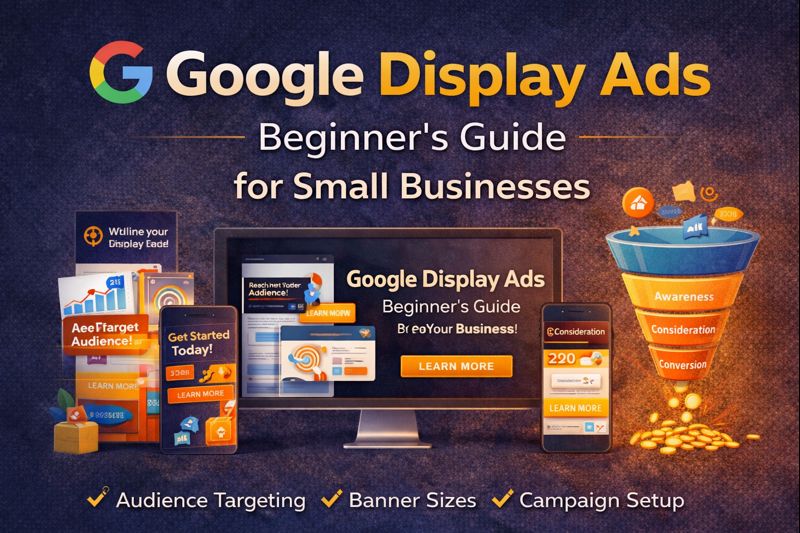
A marketing funnel is the journey customers take from first hearing about your brand (awareness) to considering your products, to finally making a purchase (conversion), and beyond. Display ads can be used at every stage of this funnel:
- Top of Funnel (Awareness): Display ads are often used to introduce your brand to new audiences. For example, a bakery might show colorful banner ads (with images of bread and cupcakes) on cooking blogs to create brand recognition. This is the “awareness” stage in the funnel.
- Middle of Funnel (Consideration): Here people are learning more and comparing options. You might show display ads to users who have searched for related products or have interests that match your business. For example, a hotel might target users who are browsing travel sites or who have an “in-market” interest in booking vacations. These ads could highlight special offers or unique features to persuade them.
- Bottom of Funnel (Conversion/Decision): At this stage, display ads are often used for retargeting (also called remarketing). You show ads to people who already interacted with your business – for example, someone who visited your online store but didn’t buy. Display ads reminding them of items they left in the cart can encourage them to come back and complete the purchase. Retargeting is powerful because it reaches people who already know your brand.
- Loyalty: Even existing customers can see display ads, such as ads about a loyalty program or new products, to keep them engaged.
In short, display ads let you reach people anywhere in the funnel. They build awareness at the top, provide information in the middle, and help close sales at the bottom (especially through remarketing).
Banner Ads: What They Are and How They Work
Banner ads are the most common type of display ad. They are rectangular image or animated ads placed on web pages (often at the top, bottom, or side). For instance, you may have seen a banner running along the top of a blog post (often called a leaderboard) or a tall, narrow ad on the side (a skyscraper). These graphics link back to the advertiser’s website.
Key things about banner ads:
- Visual format: They use images or animation (not just text) to grab attention. Classic banners might show a product photo and a headline. Modern banners can also be rich media (video or interactive elements) using HTML5.
- Brand promotion: The purpose is usually to build awareness or interest in a brand or product. For example, a clothing store’s banner might display models wearing new arrivals, prompting viewers to click through.
- Performance tracking: Banner ads are typically paid for on a pay-per-click (PPC) basis – you pay only when someone clicks the ad. You can also pay per thousand impressions (CPM) or per action (CPA) if set up. In each case, the goal is to get viewers to visit your site or take a desired action.
- Programmatic placement: Google (or ad platforms) automatically places your banner ads on sites that match your targeting criteria. You can also choose specific sites or apps to appear on (called placement targeting).
In simple terms, banner ads are like the digital billboards of the internet. They display your visual message and drive traffic when clicked. Banner ads were actually the first online ads (dating back to 1994) and remain a core part of display advertising.
Banner Ad Sizes and File Guidelines
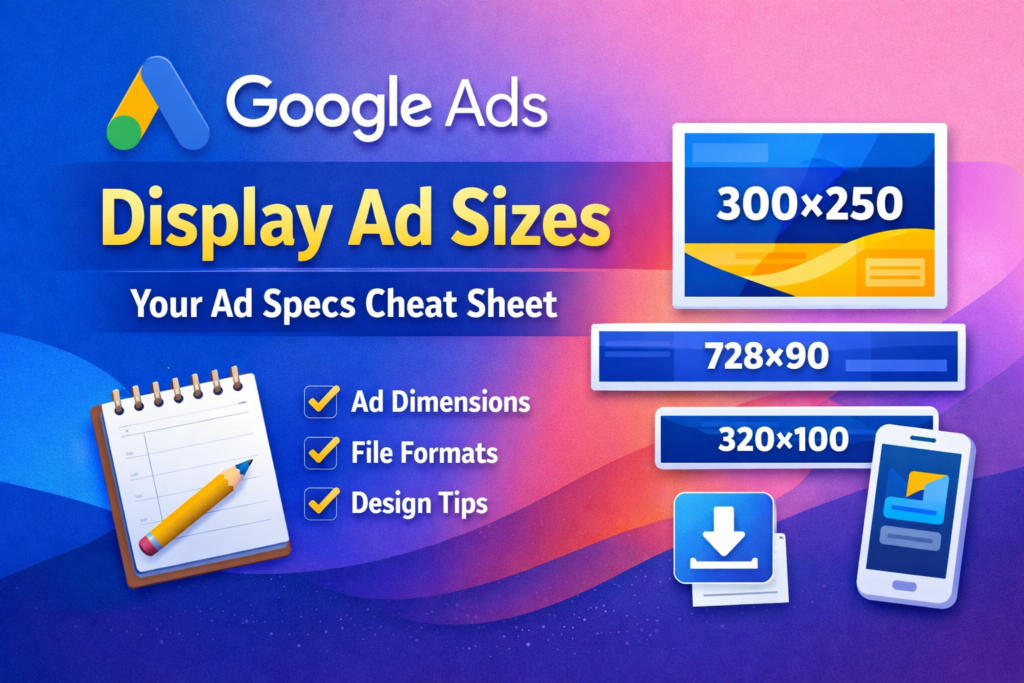
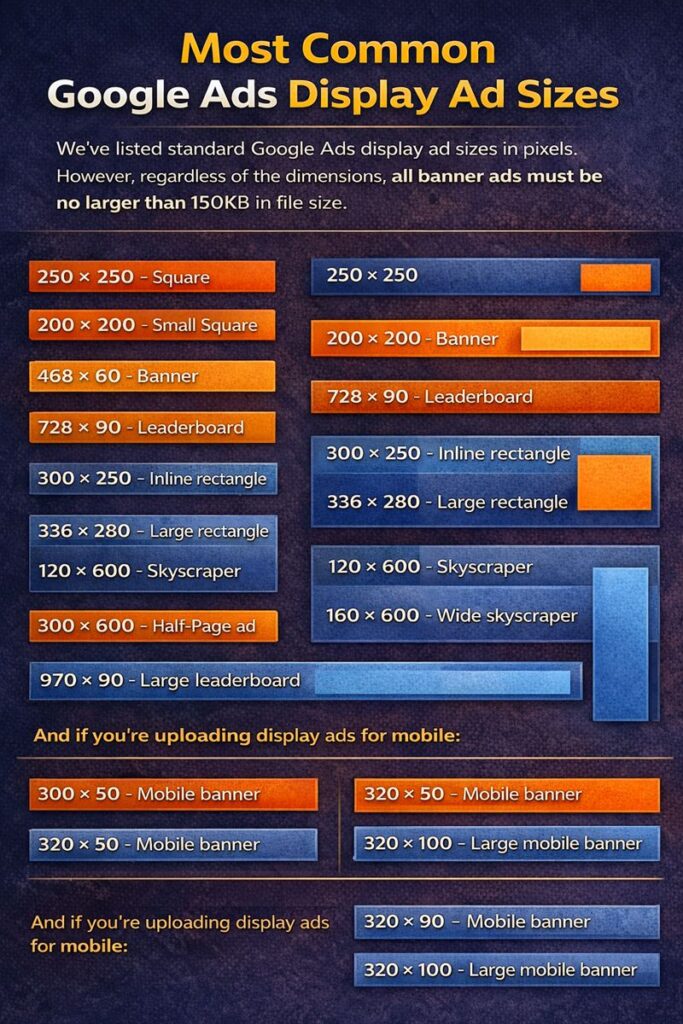
Google Display Network (GDN) accepts many standard banner sizes. It’s best to create your ads in multiple common dimensions so they fit various website layouts. Some key banner sizes to remember are:
- Medium Rectangle (300×250 px) – very common on both desktop and mobile.
- Large Rectangle (336×280 px) – similar placement to the above.
- Leaderboard (728×90 px) – often at the top of webpages.
- Half-Page (300×600 px) – tall ad that appears in content-heavy pages.
- Wide Skyscraper (160×600 px) – a vertical sidebar ad.
- Large Leaderboard (970×90 px) – extra-wide banner.
- Mobile Banner (320×50 or 320×100 px) – for mobile screens.
- Square Ads (250×250, 200×200 px) – versatile on both desktop and mobile.
Make sure to supply as many of these sizes as possible so Google can show your ads in optimal places. If you upload only one size, Google might resize it and it may not look good.
File formats and size limits: Google supports PNG, GIF, and JPG images for banners. The maximum file size per image is 150 kilobytes – keep your graphics lightweight to load quickly. (For HTML5 ads or complex banners, the total package can be larger, but for beginners sticking to 150KB per image is safest.) Also, avoid heavy text or white-only backgrounds, as Google’s guidelines favor crisp, clean visuals.
By creating high-quality images in these standard dimensions and keeping files small, your ads will be eligible for the widest range of placements and display smoothly on all devices.
How Google Display Ads Work: Targeting, Placements, and Bidding
Audience Targeting: One of the strengths of Display Ads is who you can reach. Google offers many targeting options:
- Demographics: Choose age ranges, gender, parental status, or household income. For example, target only women aged 25–44 if that’s your customer base.
- Interests and In-Market: Google automatically groups people by interests or by what they are “in the market” to buy. For instance, “Affinity” audiences group users by broad lifestyles (like “foodies” or “fitness buffs”), while “In-Market” audiences consist of users actively researching a specific product (like “apartments for rent”). These let you reach people likely interested in your offerings.
- Keywords and Topics: You can tell Google relevant keywords or topics (e.g. “organic food,” “wedding planning”) and Google will show your ads on pages related to those topics.
- Placement Targeting: If you have specific websites, apps, or YouTube channels in mind, you can pick them manually. For example, a sports drink company might choose to show ads only on sports news sites.
- Custom Audiences: Create custom segments based on a combination of interests or behaviors. For example, reach people who recently visited pages about gardening if you sell plant care products.
- Remarketing (Audience Lists): This is very important. You can show ads to people who have already visited your website or used your app. These lists (audiences) are built from analytics or past visitor data. Remarketing lets you re-engage warm leads – for instance, showing a special offer to someone who added to cart but didn’t check out.
Google Display targeting options include demographic, interest, placement, and remarketing audiences.
Placements: Google’s Display Network covers millions of sites and apps. By default, Google automatically places your ads on pages it deems relevant to your targets. But you can also manage placements yourself. In your campaign, you can include specific domains or YouTube channels where you want ads to appear. Likewise, you can exclude content categories or individual sites that aren’t a good fit (for example, you might exclude video games if you’re selling books).
Bidding and Budget: You set a daily or total budget for your display campaign. Google will pace your ads to spend that budget. For each click or impression, you pay the amount you bid. You can choose different bidding strategies depending on your goal:
- Maximize Conversions: If you have conversion tracking set up (e.g. sales or sign-ups), Google will try to get you as many conversions as possible within your budget. This is a good default for performance campaigns.
- Target CPA (Cost Per Acquisition): Set a desired cost per conversion and Google bids to achieve it. Only use this when you have historical conversion data.
- Maximize Clicks: An automatic strategy where Google bids to get the most clicks within your budget. (Be careful: it may drive lots of low-value traffic.)
- Manual CPC: You set your own max bid for each click. This gives control but requires more maintenance.
- vCPM (Viewable Cost Per Thousand): If your goal is pure awareness (impressions), you can pay per thousand impressions of your ad (paying only for viewable impressions).
In practice, many new advertisers start with Maximize Conversions (for sales or leads) or Maximize Clicks (for traffic), then switch to more targeted bids as they gather data. Importantly, Google recommends starting with at least a moderate budget (for example, 5–10% of your total marketing budget) and letting the campaign run for a few days to collect data.
Putting it together: When your Display campaign runs, Google enters an ad auction each time a page loads on a site in the network. It looks at your targeting (audience, keywords, placements) and bids, and decides if your ad should show. If yes, your banner will appear on the chosen page. You’re only charged when someone clicks (for CPC bidding) or sees the ad (for CPM bidding). By carefully selecting your targets and bid strategy, you control who sees your ads and how much you pay.
How to Set Up a Google Display Ads Campaign (Step-by-Step)
Launching a display campaign is straightforward once you know the steps. Here’s a simple step-by-step process:
- Create a New Campaign:
- Log in to Google Ads and click “+ New Campaign.”
- Choose your campaign goal (e.g. Sales, Leads, or Brand Awareness) or skip the guided goals for full manual control.
- Select “Display” as the campaign type.
- Pick Standard Display Campaign (rather than Smart Display) if you want manual control over targeting and bids.
- Configure Campaign Settings:
- Name your campaign clearly (e.g. “SpringSale – Display”) so you can track it.
- Choose the locations you want to target (countries, regions, or radius around a city). For remarketing, include wherever your customers live.
- Select the language of your ads.
- Set your budget (for example, start with 5–10% of your ad budget). You can adjust later as performance comes in.
- Choose a bidding strategy: for conversions, try Maximize Conversions; for visibility, Viewable CPM (also called vCPM); avoid only Maximize Clicks unless you mainly want traffic.
- Define Targeting and Audiences:
- Pick your audience segments. For new customer acquisition, use affinity or in-market audiences related to your products, or create custom segments. For example, a travel site might choose “travel enthusiasts” or “frequent flyer in-market” groups.
- If retargeting, add your remarketing lists (e.g. past website visitors or cart abandoners). These lists must have at least ~1,000 users to run.
- Decide on placement exclusions or specific placements. Optionally, manually add placements (specific websites or apps) if you know where you want ads to show.
- Audience combinations: You can layer targets. For example, target people in a demographic group and with a specific interest. Use the “Target and bid” option to require both criteria.
- Build Your Ads:
- Create Responsive Display Ads (RDAs) for best results. Upload several images, logos, and (if relevant) a video that fit Google’s size requirements. For example, upload images in 1.91:1 and 1:1 aspect ratios.
- Write multiple headlines (up to 30 characters each) and descriptions (up to 90 characters). Provide different copy so Google can mix-and-match the best combinations.
- Include a clear Call to Action (like “Shop Now” or “Learn More”) and ensure your ad clearly represents your brand (logo and colors).
- Enter your final URL (the landing page users reach after clicking). Add UTM tracking parameters if you use Google Analytics, so you can monitor performance.
- Preview your ads in different layouts (desktop and mobile) to make sure nothing gets cut off.
- Launch and Monitor:
- Review all settings carefully and click Publish to launch your campaign.
- Once live, monitor performance regularly. Check metrics like impressions, clicks, conversions, and cost.
- Give Google’s system a few days (typically 3–5 days) to collect data before making big changes. For remarketing campaigns, you might see results faster, but for cold audiences, wait at least a week.
- After enough data, adjust as needed: increase bids on well-performing segments, pause poor placements or audiences, and add new creatives to test.
Following these steps will set up a solid display campaign from scratch. For more guidance, see Google’s help pages or tutorials.
Real-World Examples
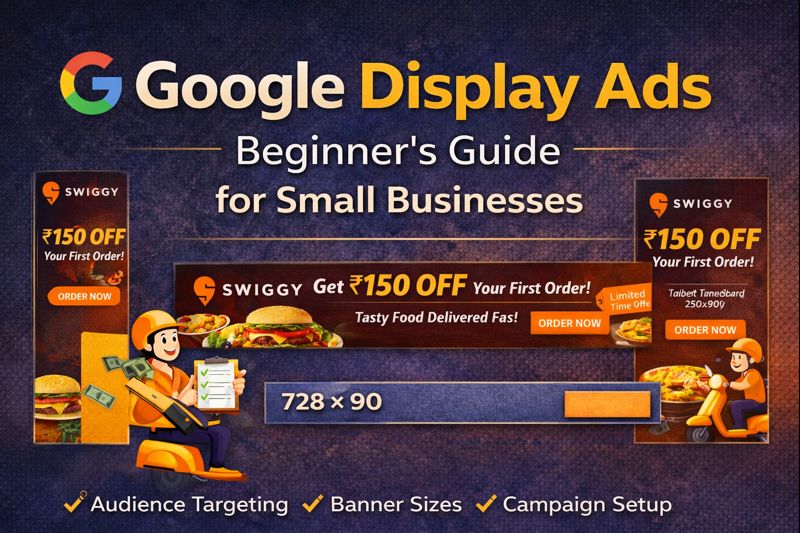
- Food Delivery / Restaurants: A local pizzeria could use Google Display Ads by targeting people who enjoy “pizza” or “Italian cooking” (interest targeting), or by retargeting visitors to its website. The banner might feature a tempting image of a pizza with a “20% off your first order” headline. For example, Burger King’s “Traffic Jam Whopper” campaign in Mexico used location-targeted ads (through GPS and apps like Waze) to offer free Whoppers to drivers stuck in traffic. That clever display-like campaign (using digital billboards and in-app ads) increased peak-hour food orders by 63%. Similarly, a food delivery app might show display ads around dinner time on news apps or cooking sites, or retarget past app users with a special coupon banner. These ads use bright images of food and a clear call-to-action to entice hungry customers.
- Travel and Tourism: A travel agency or airline often uses display ads to inspire wanderlust. For instance, Tourism New Zealand ran display banners with scenic images (like mountains and beaches) encouraging people to “Come Chill Above the Clouds”
. In a controlled test, these display ads led to 11% more tourist visits than non-promotional ads. A hotel chain might target people who previously searched for flights, showing an ad for a special weekend getaway. Or an online travel agency might use remarketing banners to remind users of hotels they viewed. Using beautiful imagery and targeting users interested in travel, these display campaigns boost awareness and bookings for travel businesses.
- E-commerce (General): Even small online shops can benefit. Suppose a craft store sells handmade soaps. They could target DIY or wellness blogs with banner ads showcasing their best-selling soap bars. If someone visited the shop’s site and left without buying, the store can retarget that user with a display ad offering 10% off on their first order. These kinds of practical examples show how display ads bring potential customers back into the marketing funnel.
Each of these examples shares the same idea: use eye-catching visuals and relevant targeting to reach the right people. As the Tourism NZ case shows, well-placed display ads can measurably increase customer actions (in NZ’s case, tourist visits).
Tips for Maximizing Display Ad Performance
- Use Multiple Creatives: Don’t rely on just one banner. Upload several images and write multiple headlines/descriptions. Google will test different combinations (especially with responsive ads) and show the best-performing ones. Variety helps reach different tastes and avoids “ad fatigue.”
- Keep Branding Consistent: Use your logo and brand colors in every ad. This builds recall. Even if a user doesn’t click immediately, seeing your brand repeatedly makes them more likely to recognize you later.
- Leverage Remarketing: Always include a remarketing campaign. It’s often the most cost-effective display effort because it targets people who already showed interest. For example, show special deals to past visitors or cart abandoners. Remarketing campaigns generally have higher conversion rates.
- Monitor and Adjust Placements: After your campaign starts, check which websites and apps are showing your ads. If certain placements are costing a lot without results, exclude them. Conversely, allocate more budget to high-performing placements. Google’s placement reports can guide these adjustments. Regularly prune underperforming segments.
- Optimize Your Bids: If you’re not using an automated strategy, adjust bids for better targets. For example, increase bids for audiences or demographics that convert well. If using a smart bidding strategy (like Max Conversions), ensure your conversion tracking is correctly set up so Google’s algorithm has good data.
- Set a Realistic Budget: Start with a moderate daily budget (for example, 5–10% of your overall Google Ads spend). If you see consistent positive ROI over a week or two, gradually increase budget. Also consider scheduling: if you know evenings work best for your audience, run the ads more aggressively then.
- Test, Test, Test: Treat your first campaign as an experiment. Try different images, text, and targeting. For instance, test an ad with a product photo vs. an ad with a lifestyle photo to see which gets more clicks. Continually split-test new ad versions. Over time, these tests will reveal what resonates with your audience.
- Use Clear Calls to Action: Each banner should have a simple call-to-action, like “Shop Now,” “Order Today,” or “Learn More.” Make it obvious what you want the user to do.
- Implement Conversion Tracking: Always track what happens after a click (sales, sign-ups, etc.). This lets you see if the campaign is truly profitable. If conversions aren’t tracking, you won’t know which parts of your campaign are working. Google’s Campaign Setup guide can help you enable this.
- Exclude Irrelevant Audiences: Narrow down too-broad targeting. For example, if you sell kids’ toys, exclude adults without children in demographic settings. This saves budget by not showing ads to the wrong people.
- Stay Patient: Display campaigns often need a few days to “learn.” Avoid making sweeping changes too quickly. Let the campaign run for about a week before evaluating performance.
By following these tips—careful targeting, smart bidding, strong creative, and ongoing optimization—you’ll give your Display Ads campaign the best chance to succeed. Remember, display marketing is a marathon, not a sprint. Keep improving your ads and audience settings over time, and you’ll see better results.
Sources: Authoritative Google Ads guides and industry resources were used to compile this information. These insights reflect current best practices for 2026.