
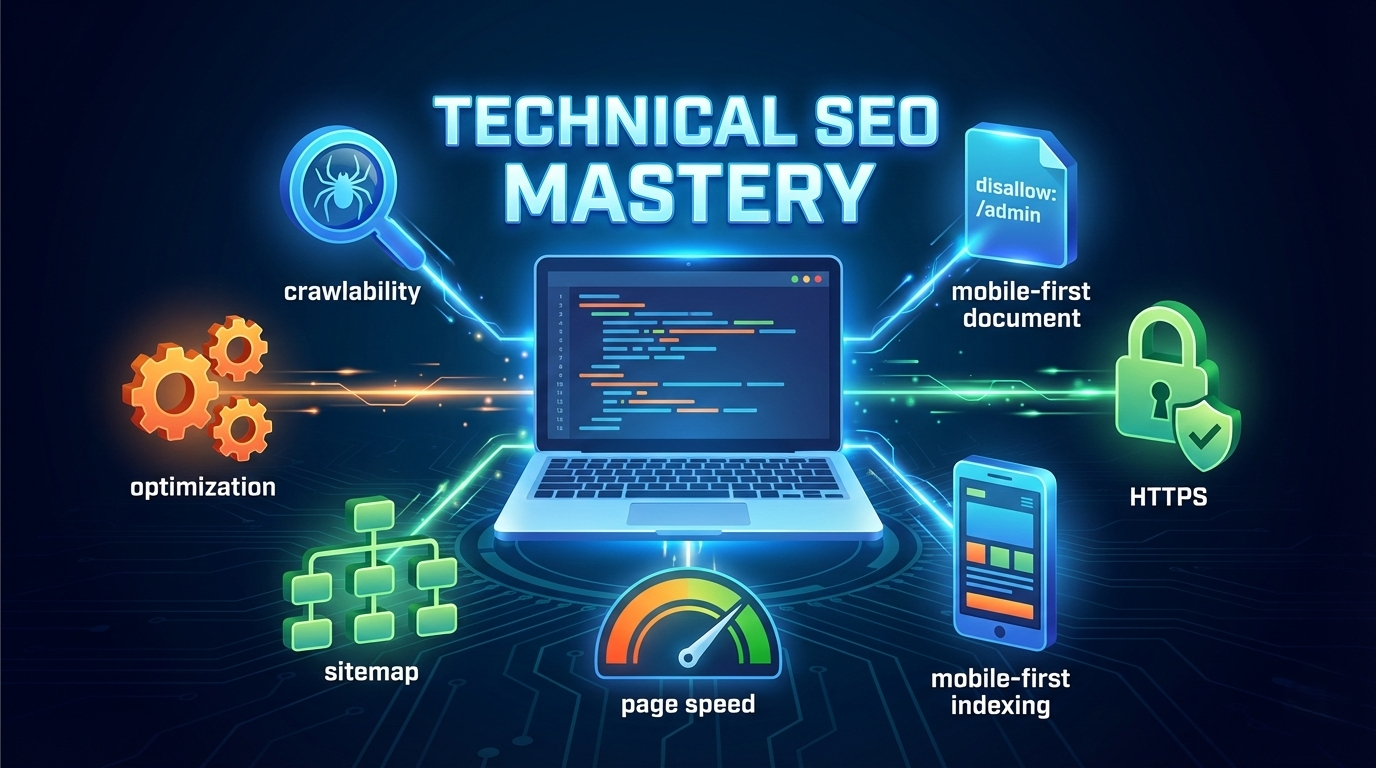
Table of Contents
Table of Contents
Introduction
For a new website, technical SEO is like building a strong foundation: even the best content won’t matter if search engines can’t find or understand your pages. Technical SEO involves optimizing site infrastructure – crawl settings, site structure, performance, and more – so Googlebot can crawl, index, and rank your site effectively. In this guide, we break down the essentials (sitemaps, robots.txt, structure, speed, mobile, etc.) in clear steps. Our goal is to make this approachable for beginners, using short paragraphs and bullet lists for easy reading.
(Diagram suggestion: “Crawl & Index Flowchart.” A simple flowchart illustrating Google’s crawling process – e.g. Googlebot visits your homepage, checks the robots.txt, reads the XML sitemap, then crawls linked pages to add to the index. Alt text: “Flowchart of search engine crawling and indexing process.” Place this near the introduction or the section on crawling and indexing.)
By the end, you’ll know how to set up sitemaps, use a robots.txt file, improve page speed, ensure your site is mobile-friendly, and fix common issues – all so Google can find your pages and show them to people searching. Let’s dive in!
Understanding Technical SEO
Why Technical SEO Matters
Technical SEO is optimizing your website’s infrastructure so search engines can easily crawl, index, and render your content. Think of it this way: You build a website for users, but search engines are the gatekeepers that decide if those users ever find it. Even with great content, a poorly configured site will stay invisible. Good technical SEO:
- Improves crawlability and indexability, so Google can find and understand your pages.
- Ensures mobile usability (now required, since Google uses mobile-first indexing).
- Boosts site speed and performance, which helps both rankings and user experience.
- Secures your site (HTTPS), building trust and even getting a small ranking boost.
When these basics are in place, your content gets indexed faster and ranks higher. A technically sound site also makes it easier to monitor problems and grow over time. In short, technical SEO sets the stage for everything else in SEO: without it, other efforts won’t count.
How Search Engines Crawl, Index, and Rank
Search engines use programs (crawlers like Googlebot) to find pages across the web. Crawlers start from known URLs, follow links, and load the page’s HTML, CSS, and scripts to understand the content. The process is roughly:
- Crawling: Googlebot discovers pages via links or sitemaps. It requests each page’s content, much like a user’s browser, but also pays attention to signals like
robots.txtand meta tags to know what to crawl. - Indexing: If a page passes quality checks (unique, useful content), Google adds it to its index (a giant library of content). Not every crawled page gets indexed: duplicate, thin, or blocked pages may be skipped.
- Ranking: When a user searches, Google finds the most relevant indexed pages and ranks them. A page’s rank depends on hundreds of factors (content quality, backlinks, user experience, etc.). Importantly, if your pages aren’t indexed (or indexed under the wrong URL), they won’t appear at all.
For a new site, Google might not know about your content yet, especially if few other sites link to you. You can help by: submitting an XML sitemap (lists URLs for Google), using proper internal linking so every page is reachable, and fixing any crawl errors (blocked pages, broken links, etc.).
Making Your Site Crawlable & Indexable
XML Sitemap Basics
An XML sitemap is a file listing all the important URLs on your site. It serves as a blueprint for search engines, telling them which pages you want indexed and when they were last updated. Think of it like a table of contents for your website. Submitting your sitemap to Google Search Console (as a “crawl backup plan”) helps Google find pages that might be hard to reach by links alone.
Key sitemap tips:
- Include only live, indexable pages. Remove any 404s, redirects, or noindex pages, or Google may get confused.
- If you have a huge or frequently updated site (like an ecommerce store), use a dynamically updated sitemap so new pages get discovered faster.
- Even if your site is small (<500 pages) and well-linked, a sitemap can still help Google by providing a safety net. It can also list images, videos, or news content with extra details (duration, publication date, etc.).
- After creating your sitemap (many CMSs generate one automatically), submit it in Google Search Console. This lets you see how many URLs are indexed and catch any errors. You can also test it with Search Console’s tools.
Robots.txt: Guide Crawling
The robots.txt file (placed at your site’s root) tells search engine bots which pages or directories they can or cannot crawl. Its main use is to manage crawl traffic – for example, preventing crawlers from hitting low-value sections and overloading your server.
Tips for robots.txt:
- Block only truly unnecessary paths: e-commerce filter pages, internal search results, duplicate content, or private folders. For example, blocking “/admin/”, search queries (like
/search?q=...), or cart pages can save crawl budget. - Do not block essential resources: Don’t disallow your CSS or JS if those are needed to render the page. If Googlebot can’t load your CSS/JS, it might think your page is broken (especially on mobile).
- Remember:
robots.txtdoesn’t prevent indexing by itself; it only stops crawling. Even a disallowed URL can appear in search results if other sites link to it. To keep a page out of Google, use anoindextag instead (see below).
Common mistake: A misconfigured robots.txt can accidentally block your whole site. Always double-check (and use Google Search Console’s robots.txt tester) to ensure you aren’t blocking pages you want indexed.
URL Structure & Redirects
A clean URL structure helps both users and search engines. Use descriptive, simple URLs (e.g. /blog/technical-seo-guide instead of /page?id=123), and organize them into folders if that makes sense (like /category/subcategory/page). When you change a URL or move content, set up a 301 (permanent) redirect from the old URL to the new one. This passes nearly all the page’s SEO value (link equity) to the new location.
- Use 301 redirects for moved pages: For example, if you rebrand or restructure, avoid “Page Not Found” errors by redirecting old links. Google prefers 301 redirects and will eventually transfer ranking signals to the new URL.
- Avoid redirect chains or loops: A series of redirects (A→B→C) can confuse crawlers and slow them down. Likewise, circular redirects (loops) can make pages inaccessible and waste crawl budget. Check your redirects regularly.
- HTTPS redirects: After you install an SSL certificate, use 301 redirects to send all HTTP pages to HTTPS (secure) URLs. This ensures users and bots always use the secure version.
Canonical Tags and Duplicate Content
If you have multiple URLs with very similar or duplicate content, use a <link rel="canonical"> tag to tell Google which version you prefer. For example, if the same product appears under two category paths (/office/chair-x and /living-room/chair-x), pick the main one and add a canonical tag on the other page pointing to it. This consolidates ranking signals and keeps your index clean.
- Where to use canonicals: Filtered pages, tracking parameters, print-friendly pages – any duplicates. Always place the
<link rel="canonical">in the HTML<head>of the page. - Don’t rely on
noindexfor duplicates: A noindex tag would remove a page entirely. Use canonicals to consolidate without dropping the page from the index. - Best practice: Consistently link to your canonical URLs internally. For instance, always link to
https://example.com/pageand not to its duplicatehttps://example.com/page?session=xyz. This signals to Google which one you consider primary.
Optimizing Site Structure and Internal Linking
Clear Navigation & Hierarchy
Your site architecture – how pages are organized and linked – affects crawlability and UX. A shallow hierarchy (few clicks from home to any page) is best. Research shows that if a page is buried more than four clicks deep, search engines may treat it as less important. Ideally, every important page should be reachable within 2–3 clicks from the homepage.
- Use intuitive navigation menus: Organize content into logical categories. For example, an online store’s top nav might have “Living Room,” “Bedroom,” etc., under which products are grouped.
- Implement breadcrumbs: Breadcrumb links (e.g. Home > Category > Subcategory > Page) help users (and Google) see the path. They improve UX and reinforce hierarchy. Marking breadcrumbs with schema markup can even enhance search results with “breadcrumb” snippets.
- Consistent URL paths: Your URLs should reflect the hierarchy (e.g.
/living-room/sofas/sofa-model). Clear URLs help Google understand page topics and show users a clean path.
A well-structured site signals topical authority. When content is grouped under hub pages (cluster model), Google clearly sees your expertise on a subject. For example, a “Technical SEO” hub page linking to separate guides on sitemaps, page speed, etc., shows Google the breadth of your coverage.
(Diagram suggestion: “Website Hierarchy Chart.” An illustrated tree diagram showing homepage at top branching into main categories, with subpages below. Alt text: “Hierarchy diagram of a website’s structure, with the homepage at top linked to category pages and sub-pages below.” Place this in the Site Structure section to visualize architecture.)
Internal Links & Orphan Pages
Internal links are hyperlinks between pages on your site. They serve two main purposes: guiding users, and guiding search engine crawlers. Pages with more internal links (especially from top pages) are often seen as more important by Google. Linking related content together builds a network of authority.
- Use descriptive anchor text: When linking internally, use clear, keyword-rich phrases. For example, link “technical SEO checklist” rather than “click here.” This tells crawlers and users what the linked page is about.
- Link new and orphan pages: Every page should be reachable by at least one internal link. Orphan pages (those with no incoming links) are effectively invisible to Google. Use an audit tool (like SEMrush or Screaming Frog) to find orphans, then add relevant links to them from related pages or menus. If a page is intentionally isolated (like a thank-you page), consider a
noindexor redirect instead of leaving it orphaned. - Avoid broken internal links: Double-check that internal links point to existing pages (and use 301s if a URL changed). Broken links waste crawl budget and hurt user experience.
Proper internal linking helps Google discover pages (following links is how crawlers find new content). It also distributes “link equity” – for example, a high-authority page can pass value to a newer page via a link. Overall, a thoughtful linking strategy ensures your important pages get crawled and indexed more easily.
Breadcrumbs and URL Paths
Breadcrumbs (mentioned above) enhance navigation. Another key aspect is keeping URLs clean and consistent. URLs are one of the first things search engines see, and a logical URL structure reinforces your site hierarchy.
- Flat structure where possible: Try to keep the URL path short. For example, use
/blog/technical-seo-tipsrather than/blog/2025/09/technical-seo-tipsif date isn’t needed. - Keyword inclusion: Naturally include a relevant keyword or phrase in the URL, as it provides a clear clue about page content.
- Avoid unnecessary parameters: Try not to use long query strings. If you have parameters (e.g. session IDs, tracking codes), use canonicals or in-URL rewrites to prevent duplication issues.
A consistent, descriptive URL scheme (and breadcrumb schema) makes it easier for search engines to associate pages with topics and for users to orient themselves.
Improving Site Performance
Page Speed and Core Web Vitals
Page speed is a critical technical factor for both user experience and SEO. Slow pages frustrate visitors and lead to higher bounce rates – signals that can hurt your rankings over time. Google explicitly uses page speed (via Core Web Vitals) as a ranking factor.
Core Web Vitals measure real-world performance:
- LCP (Largest Contentful Paint): How long it takes for the main content to load. Target: under 2.5 seconds.
- FID (First Input Delay): How quickly the page responds to user input. Target: under 100 ms.
- CLS (Cumulative Layout Shift): How stable the layout is as it loads. Target: below 0.1.
Improving these scores often comes down to simple fixes: compress and properly size images, enable browser caching, minimize unused CSS/JS, and lazy-load below-the-fold media. Also, use a fast hosting/server and a CDN for global speed. Tools like Google PageSpeed Insights or Lighthouse can diagnose issues on your site. For example, removing a large hero image lifted a site’s LCP from “poor” to “good” and boosted rankings.
Figure: Google PageSpeed Insights screenshot showing Core Web Vitals (Performance score 96, LCP 2.4s, FID 0ms, CLS 0.046). Faster load times (green bars) contribute to better rankings.
Mobile-First Indexing
Google predominantly uses the mobile version of your site for indexing and ranking. That means your site’s mobile experience isn’t optional – it’s the benchmark for SEO. With over 60% of searches on mobile, a slow or poorly designed mobile site hurts both users and SEO.
- Use responsive design: A single, responsive site that adapts to screen sizes is generally best. It ensures content is consistent for both users and bots.
- Optimize mobile UI: Make sure text is readable (no tiny fonts), buttons are well-spaced, and avoid intrusive popups on mobile. Horizontal scrolling or layout shifts should be minimized. These factors also affect Core Web Vitals.
- Test on devices: Tools like Google’s Mobile-Friendly Test can catch issues. Check your site manually on real phones too.
Mobile-first means if your desktop site is fast and nice but your mobile site lags, you lose. Fixing mobile issues (compress images, remove bloated code, etc.) led one site to cut load time from 4.3s to under 2s – resulting in a 28% traffic jump. To sum up, make your site equally good on mobile (if not better) to satisfy users and Google.
HTTPS: Secure Your Site
Security is a ranking factor too: HTTPS is no longer optional for SEO or user trust. If visitors see a “not secure” warning (broken lock), many will abandon the site – and that’s bad for your SEO and conversions. Google confirmed that secure sites get a ranking boost.
- Install SSL and redirect: Obtain an SSL certificate (often free via Let’s Encrypt) and install it on your site. Then use 301 redirects to send all
http://pages tohttps://versions. - Fix mixed content: Ensure every image, script, and resource loads over HTTPS. Mixed content (e.g. a secure page loading an
http:image) can break your site or show warnings. Incomplete HTTPS setups can slow pages or trigger browser alerts. - Renew certificates: Set up automatic renewal so your certificate never expires unnoticed.
A fully HTTPS site protects user data and gets SEO benefits. In practice, we often see that after fixing mixed-content issues, both page speed and trust metrics improve, helping rankings.
Structured Data & Schema Markup
Structured data (schema markup) is optional but powerful. It’s code you add to label your content, helping search engines understand context (products, reviews, events, etc.). Well-implemented schema can make your listings stand out with rich results (stars, FAQ boxes, etc.). It doesn’t directly boost rank, but it can improve click-through rates.
- Common schemas: Examples include Article markup for blog posts, Product markup for e-commerce, LocalBusiness for local SEO, and FAQ/HowTo markup for guidance pages.
- Benefits: Beyond rich snippets, schema reinforces relevance. Google says “structured data helps you speak the language of Google” and can improve visibility. It also helps search engines index your content more efficiently.
For a new site, start with the basics (Organization, Website, and Breadcrumb schema). As you grow, consider adding product or article schemas where applicable. Use Google’s Rich Results Test or Schema.org’s markup helper to validate your code. In short, schema markup is a way to turbocharge your snippets and give search engines more clues about your content.
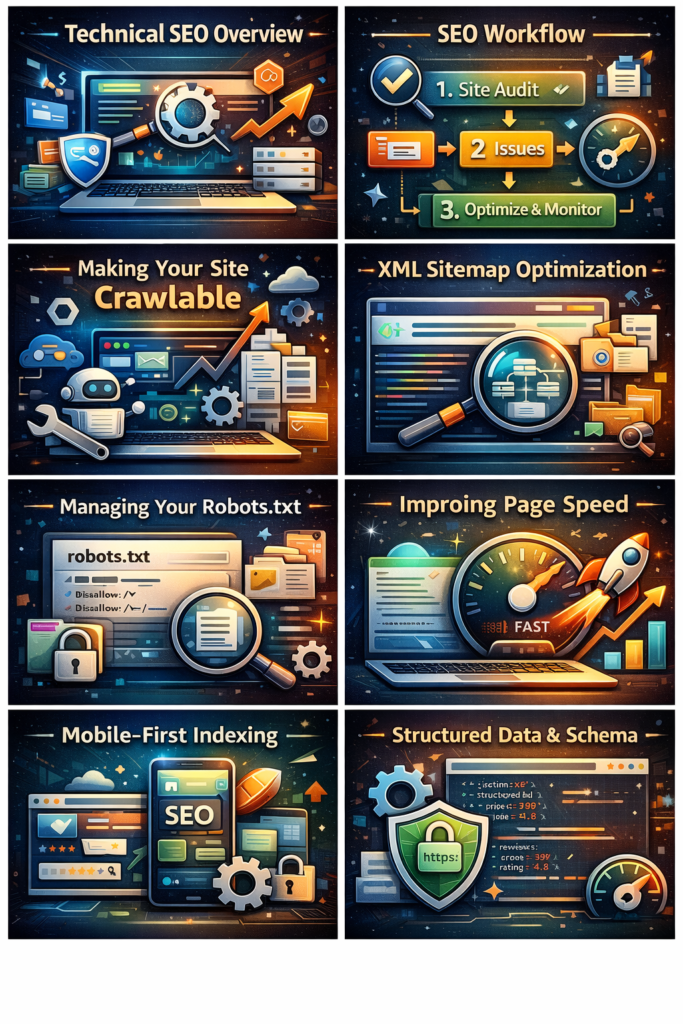
Monitoring and Auditing Technical SEO
Google Search Console & Crawl Stats
Set up Google Search Console (GSC) for your site right away. GSC is a free tool that shows how Google sees your site: which pages are indexed, mobile usability errors, security issues, and more.
- URL Inspection: Check any URL to see if it’s indexed and how Googlebot fetched it.
- Sitemap report: GSC tells you how many URLs from your submitted sitemap are indexed.
- Coverage report: Find crawl errors (404s, server errors) and pages blocked by
robots.txt. - Core Web Vitals report: View LCP, FID, CLS data from real users.
Regularly reviewing GSC alerts (or using the Googlebot Crawl Stats) helps catch issues early. For example, if Googlebot reports spike in server errors or fewer crawled pages, you can investigate. As KWE recommends, use crawling tools or SEO audit tools to scan for problems (sitemaps, speed, security) in one go.
Common Crawl & Indexing Issues
Watch out for these frequent problems:
- Robots.txt errors: A mistake here can block your entire site. Double-check it after edits.
- Missing or broken sitemap: Ensure your sitemap is valid XML and reachable (e.g.
https://yourdomain.com/sitemap.xml). Use GSC to test it. - Orphan pages: As above, find any page with no internal links. Add links or remove them.
- Duplicate content: If similar content appears on multiple URLs, use canonicals or merge content.
- Internal linking mistakes: Too many links in navigation, or deep content with no links, can waste crawl budget.
- Redirect loops: Fix any pages caught in a redirect chain or loop.
- HTTPS issues: Ensure no SSL errors. Mixed content can hide elements from Google.
- Server errors (5xx): Any frequent server crashes will cause Google to slow crawling or drop pages.
Use an SEO audit checklist or tool periodically. SEMrush, Ahrefs, or the free GSC tools can scan your site and flag issues. The goal is to keep the site easy to crawl and navigate at all times.
Conclusion
Technical SEO lays the groundwork so Google can actually see and rank your content. By setting up a clear site structure, using sitemaps and robots.txt wisely, ensuring fast page loads and mobile usability, and fixing any crawl errors, you make your site accessible to search engines. The effort pays off: a technically sound site not only ranks better, it also provides a better user experience, leading to higher engagement and conversions.
Ready to get started? Run through the steps above as an SEO audit for your new site: create an XML sitemap, configure robots.txt, check your site speed, and make sure every page is linked internally. Submit your site to Google Search Console and watch for any indexing issues. With these foundations in place, continue building quality content and link outreach – and you’ll be on your way up the search results.
Call to Action: Audit your site today! Use Google Search Console and a site audit tool to find any crawl issues. Then, implement the technical fixes above. Each improvement boosts Google’s ability to crawl, index, and rank your pages. Keep learning and refining your site’s technical SEO – your visibility (and traffic) will grow as a result!.
Frequently Asked Questions
Q: What exactly is “technical SEO” for a new website?
A: Technical SEO refers to optimizing your website’s backend and infrastructure so search engines can access and understand your content. For a new site, this means making it easy for crawlers to find your pages (through sitemaps and links), ensuring mobile and speed performance, and fixing any errors (broken links, duplicates, etc.). In short, it’s everything under the hood that helps Google index and rank your pages, beyond just content and keywords.
Q: How do I create and submit an XML sitemap?
A: Most website platforms (WordPress, Wix, etc.) can auto-generate a sitemap (often at /sitemap.xml). You can also use tools or plugins to build one manually. Once your sitemap is ready, validate it (to ensure no errors) and then submit it in Google Search Console under “Sitemaps.” This tells Google which pages to prioritize for crawling. Remember to include only your live, noindex-free pages in the sitemap.
Q: What should I include in my robots.txt file?
A: Use robots.txt to disallow crawling of any parts of your site you don’t need Google to spend time on – for example, admin pages, search results pages, or duplicate content folders. Never block important resources like CSS/JS files used to render your pages, as that can harm indexing. Also, do not put noindex in robots.txt (Google ignores it there). Basically, robots.txt is for controlling crawl traffic, not for hiding content completely.
Q: How can I improve my website’s crawlability?
A: Ensure every important page is reachable by internal links – don’t leave orphan pages. Create a clear navigation structure and submit a sitemap so Google finds new pages easily. Keep the hierarchy shallow (few clicks from home), and fix any broken links or 404 errors. Also, compress images and use caching to boost load times, since faster sites tend to get crawled more efficiently【54†】.
Q: What is mobile-first indexing, and do I need to do anything special?
A: Mobile-first indexing means Google predominantly uses the mobile version of your content for crawling and ranking. To adapt, make sure your mobile site has all the same content and meta information as desktop. Use responsive design so the layout adjusts to any screen. Test your site with Google’s mobile tools to fix any usability issues (small fonts, tappable buttons, etc.). Essentially, treat your mobile site as the primary version for SEO purposes.
Q: How do canonical tags differ from redirects or noindex?
A: A canonical tag tells Google which version of a similar page you prefer, without hiding either page. A 301 redirect moves users and link equity to another URL. A noindex tag completely excludes a page from search results. Use canonicals when you have two useful pages with very similar content (e.g. product filters), but you still want them accessible to users. Use redirects if you’ve permanently moved content. Use noindex if you want to keep a page hidden from search (like a thank-you page).
Q: How can I check if my pages are indexed by Google?
A: The quickest way is the site: operator in Google (e.g. site:yourdomain.com/page-url). For detailed info, use Google Search Console’s Index Coverage report. GSC shows which pages are indexed, which are excluded (and why), and any errors found during indexing. Also, the URL Inspection tool in GSC lets you enter a URL and see its index status and any indexing issues.
Q: How often should I audit my technical SEO?
A: Technical SEO isn’t one-and-done. Run regular audits (every few months or after major changes) using an SEO tool or checklist. Monitor Google Search Console for new crawl errors or mobile issues. Periodically resubmit your sitemap after big updates. By staying on top of it, you ensure your site remains crawl-friendly as it grows.
Suggested Internal Links
- Improve Your Page Speed: Tips on optimizing images, caching, and Core Web Vitals.
- Mobile SEO Best Practices: How to make your site mobile-friendly and prepare for mobile-first indexing.
- Using Google Search Console: A beginner’s guide to setting up and using GSC for SEO.
- XML Sitemap Tutorial: Step-by-step guide to creating and submitting a sitemap.
- Site Audit Checklist: Key areas to check when auditing a new website’s SEO.
Recommended External Resources
- Google Search Central Documentation – Official guides on crawling, indexing, and technical SEO best practices.
- Moz Beginner’s Guide to SEO – Comprehensive SEO guide (covers technical fundamentals).
- Ahrefs Blog – Practical SEO tutorials, including technical optimization tips.
- Search Engine Journal – News and articles on the latest SEO techniques (check their technical SEO section).
- PageSpeed Insights Tool (Google) – Official site speed and Core Web Vitals analysis.